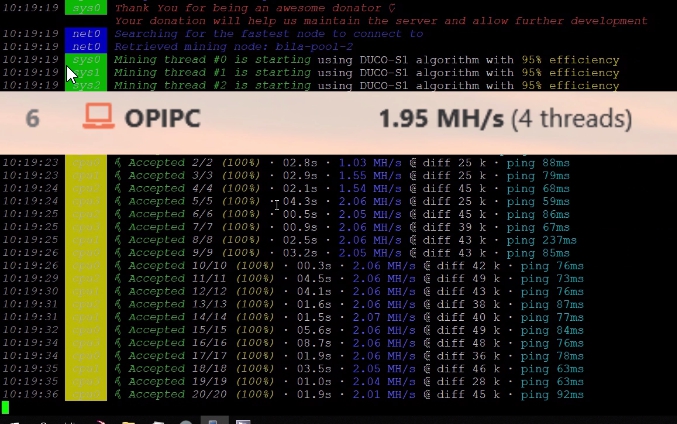
Today, I’ll show how to compile and run Duino Coin miner on an Orange Pi PC.
🎥 Video Tutorial
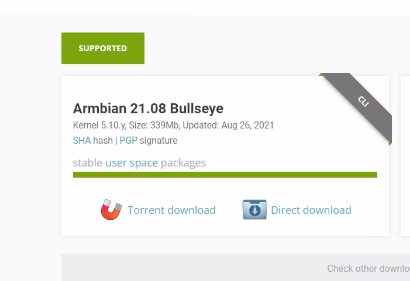
📥 Download Armbian Linux
- I used Armbian 21.08 Bullseye (CLI version).

- Flash the image to SD card using BalenaEtcher:
- 🔘 Flash from file → Select the downloaded image.
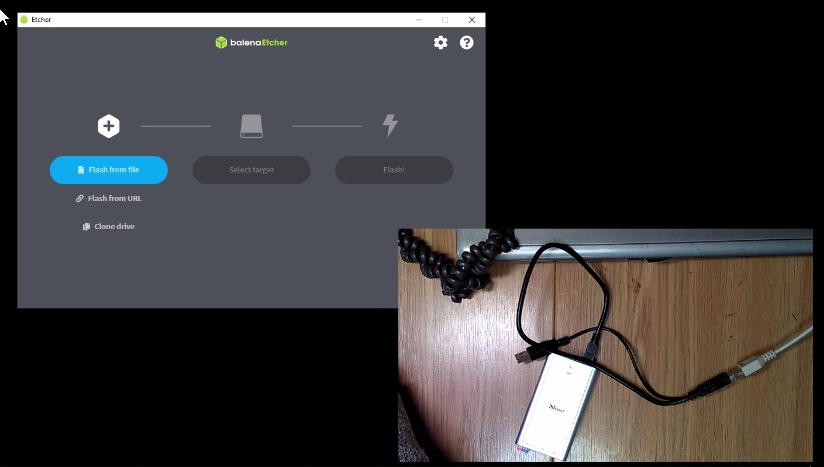
- 💽 Select target → Choose the SD card.
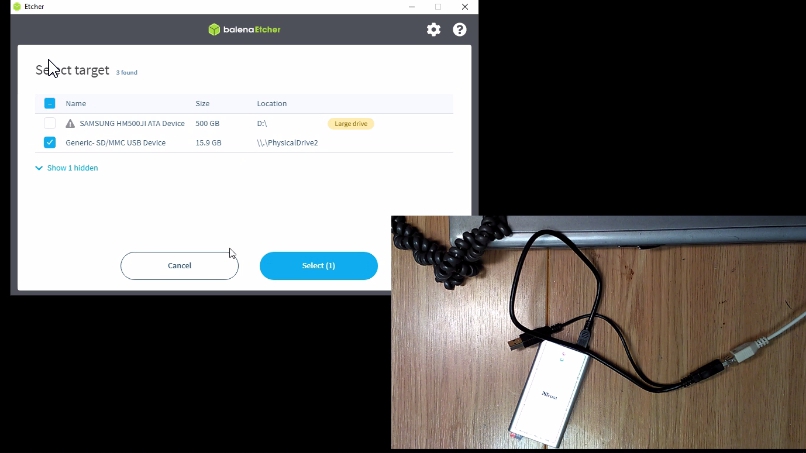
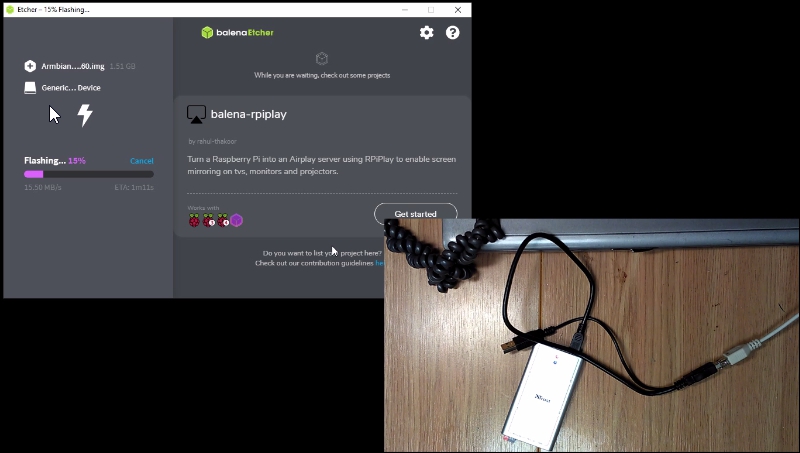
- 🚀 Press Flash to write the image.
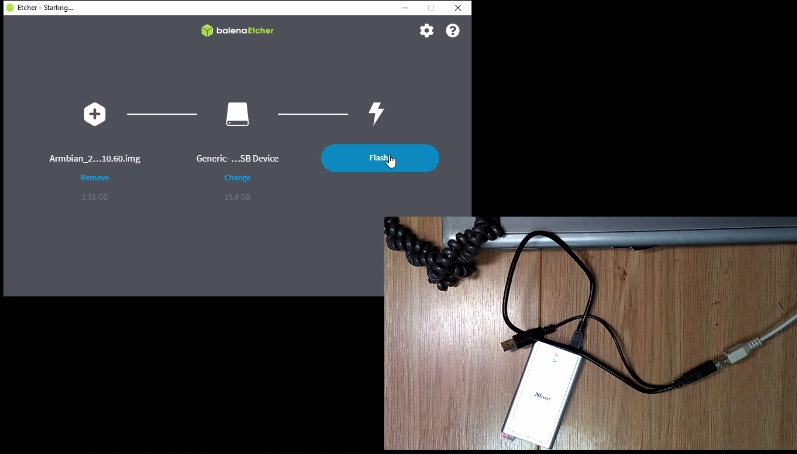
- ⏳ Wait until the image is written.
🧑💻 First Boot on Orange Pi PC
- Insert the SD card into the Orange Pi PC.
- Connect:
- 🖥️ Monitor
- 🔌 Power
- 🌐 Ethernet
- ⌨️ Keyboard
- Power on and wait for boot.
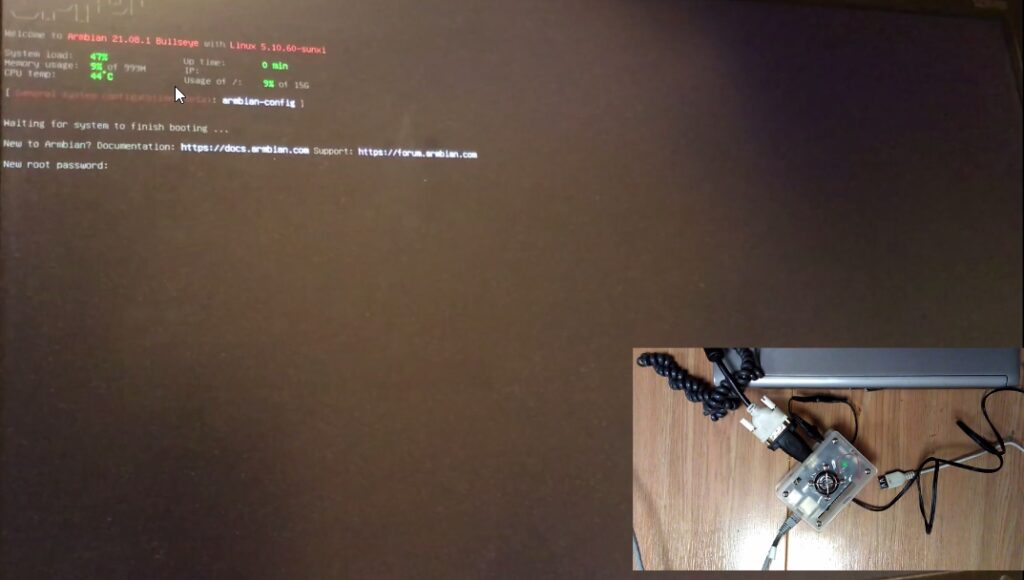
🔐 Initial Configuration
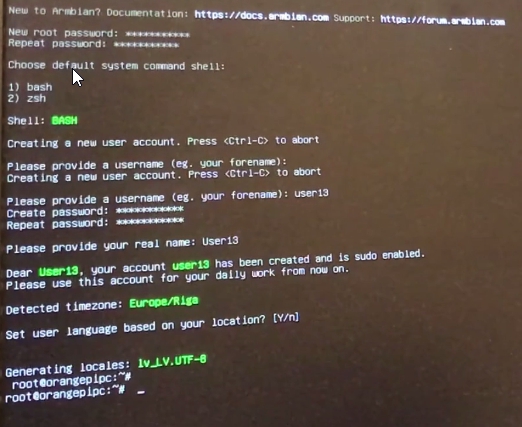
- Set root password 🛡️
- Choose a shell 🐚
- Create a standard user, set its password 👤
- Configure location/timezone 🌍
🌐 Network Setup
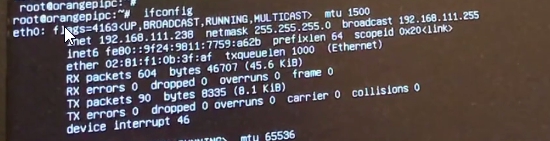
Check Orange Pi’s IP address:
ifconfig
 Use any SSH client to connect (e.g. KiTTY):
- Enter the IP
- Click Start
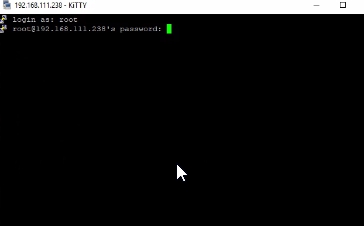
- Login as
rootusing the password you set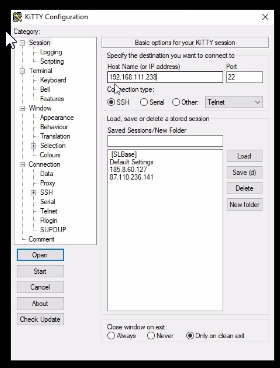
🔄 System Update
 Update packages:
apt update && apt upgrade


Install Git and Python:
apt install git python3

🧬 Clone and Start Duino Coin Miner
Clone the repository:
git clone https://github.com/revoxhere/duino-coin.git

cd duino-coin

Start miner:
python3 PC_Miner.py

You’ll get a warning about missing packages. Install them:
pip3 install requests

Restart the miner:
python3 PC_Miner.py

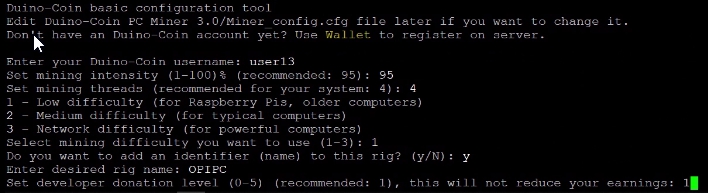
Then enter:
- 🧑 Duino username
- ⚙️ Intensity
- 🧵 Number of threads
- 🧩 Difficulty
- 💻 Rig name (optional)
- 💸 Developer donation level
📊 Performance
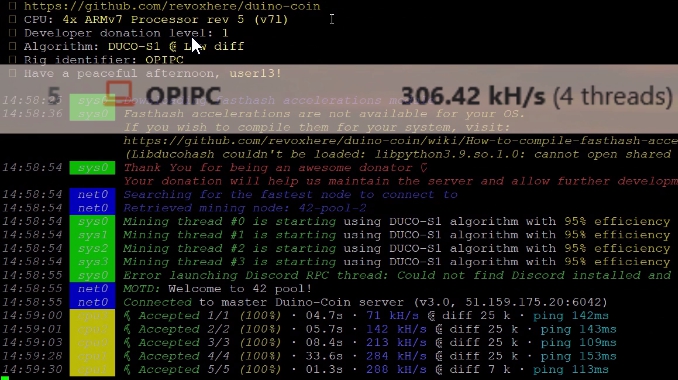
- Without fasthash: 306 kH/s
- With fasthash (compiled separately, shown in video): 1.95 MH/s 🚀🔥